

Table of Contents
If you’ve ever opened the Wallet app on your iPhone (or used Apple Pay) and thought, “I have way too many cards and passes here,” then this guide is for you. Over time your Wallet app can become cluttered with old credit/debit cards, expired loyalty cards, tickets, transit passes, and more. Cleaning it up not only helps you stay organized, it can also reduce security risk.
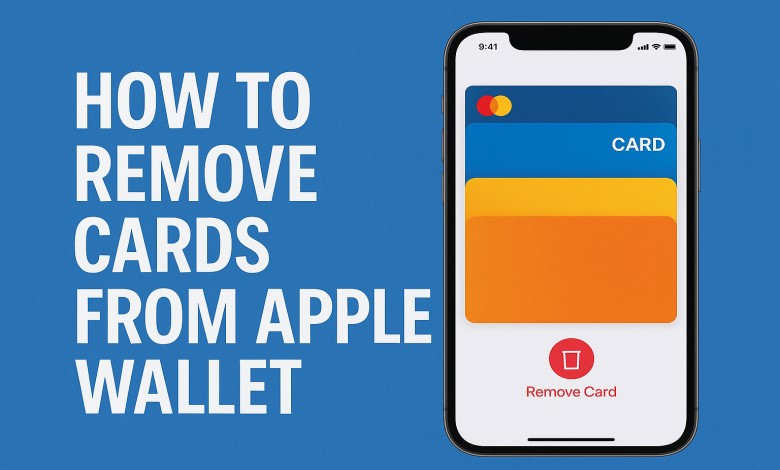
In this step-by-step guide, we’ll walk you through exactly how to remove cards from Apple Wallet whether you’re using an iPhone, Apple Watch, or iPad.
Before we get into the step-by-step how-to, let’s look at why this matters.
Why remove cards from Apple Wallet?
1. Security & privacy
When you leave valid payment cards or passes in your Wallet app, your data is still “active”. For example, if your device is lost or your Apple ID compromised, there are more items someone could potentially access. Apple notes that when a device is lost or stolen, you can mark it lost and remove cards but proactively cleaning up helps too.
2. Better organization
Having dozens of cards especially old loyalty cards, transit passes, gift cards makes the Wallet app cluttered. Easier to find the card you actually use if you clear out the ones you don’t. Also reduces accidental use of an expired or wrong card.
Read This: YouTube Desktop Dashboard: A Complete Guide for Creators
3. Improves payment defaults & reduces confusion
If you have many cards, you might accidentally have a default payment card that you no longer want. By removing old ones, you simplify your setup. Apple describes how you can not only remove cards but also change your default card.
4. Device security & performance (indirect)
While removing cards won’t dramatically boost speed, less clutter and fewer active payment methods may help your peace of mind, reduce the chance of accidental auto-payments, etc.
How to Remove Cards from Apple Wallet on iPhone
Follow these simple steps to remove a card directly from your iPhone or iPad:
- Open the Wallet app on your iPhone or iPad.
- Tap on the card you want to remove.
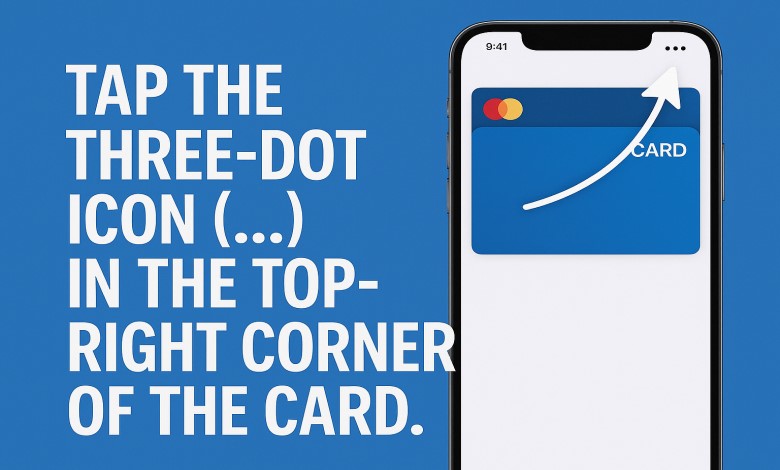
- Tap the three-dot icon (…) in the top-right corner of the card.
- Scroll down and tap Remove This Card.
- Confirm by tapping Remove again.
That’s it! The card will be deleted from your Wallet and can no longer be used with Apple Pay.
Read This: How to Delete Your Temu Account: A Full Step-by-Step Guide
How to Remove a Pass, Ticket, or Non-Payment Card from Apple Wallet
Not all “cards” in your Wallet are payment cards. You may have membership cards, transit passes, gift cards, event tickets, etc. These can also be removed in a similar manner.
Step-by-step:
- Open the Wallet app.
- Tap the pass or card you wish to remove.
- Tap the More button (•••) in the upper right.
- Tap Pass Details (if shown).
- Scroll down and tap Remove (or “Remove This Pass”).
- Confirm the removal if required.
This method works for non-payment cards that show up in Wallet. If you don’t see the three-dots icon, you may need to open the app from the Home Screen directly (not via a shortcut). Many users in Apple Community report confusion when using the wrong interface.
Read This: Amazon HR Phone Number: Contact Amazon Human Resources
Removing Cards on Other Devices (iPad, Mac, Apple Watch)
If you use Wallet/Apple Pay on multiple devices, you should know how to remove cards there too.
iPad or Vision Pro:
- Go to Settings → Wallet & Apple Pay.
- Tap the card you want to remove.
- Tap Remove Card.
Apple Watch:
- On your iPhone, open the Watch app.
- Tap My Watch tab → Wallet & Apple Pay.
- Under your cards, select the one you wish to remove, and tap Remove.
Mac with Touch ID:
- Go to System Settings (or System Preferences) → Wallet & Apple Pay.
- Click the card you want to remove → click Remove button.
Removing cards from all devices ensures consistency and avoids confusion if you reuse the card later.
When You Can’t Remove a Card: Troubleshooting Tips
Sometimes you’ll tap the card and not see the “Remove Card” option, or you’re stuck. Here are some tips:
- Ensure you are in the real Wallet app: Some users accidentally open the quick-tap side-button version of Wallet rather than the full app. On iOS 18, open the Search screen, type “Wallet”, open it directly from there.
- Check if the card is your default payment card: If it’s the default, you may need to select a different default card first before removal.
- Check for ongoing transactions: If a card is in the middle of a payment or authorization, wait until it completes.
- Restart your device: Simple, but often resolves UI glitches.
- Update iOS: Using the latest iOS version may fix Wallet/Apple Pay bugs.
- Contact your card issuer: If the card shows “No remove option,” your bank may have restrictions. Apple’s support article says you may need to contact your card issuer.
Read This: The Unsent Project: Where Anonymous Words Speak the Loudest
What Happens After Removing a Card?
Knowing what to remove and what to keep helps you maintain a clean, useful Wallet.
What you should remove:
- Cards you no longer use (expired, cancelled, closed accounts).
- Duplicate cards (if you’ve added the same card multiple times).
- Passes or tickets you no longer need (past events, old transit passes).
- Payment cards that you don’t plan to use for mobile payments anymore.
What you might keep:
- Your default payment card (unless you prefer to switch).
- Trusted loyalty cards with active rewards.
- Transit or metro passes you’ll use again soon (if the pass is still valid and you use it regularly).
- Digital keys, boarding passes, or ID cards (if they are still current and useful).
Bonus Tip: Lost Your iPhone?
If your device is lost or stolen and you need to remotely remove your cards:
- Go to iCloud.com and log in.
- Click Find iPhone.
- Select your device and put it into Lost Mode.
- This automatically suspends Apple Pay, and your cards are disabled.
FAQs (Frequently Asked Questions)
Here are answers to some common questions around removing cards from Wallet.
A: No! you need to remove it on each device separately (iPad, Mac, Apple Watch) if it’s added there. The card is removed from that device only.
A: No. Removing a card from Wallet simply removes it from mobile payments on that device. It does not cancel the card or affect the bank account in other ways.
A: Yes. If you change your mind, you can always add the card back via the Wallet app by tapping + and going through the setup process again.
A: Use the Find My app or iCloud.com to mark your device as lost. Apple Pay will be suspended on that device, and you should remove cards remotely if you can.
A: Some passes are managed by apps or services (e.g., transit agencies, ticketing apps). You may need to remove the pass from within that app or via the provider’s website rather than directly in Wallet.
Read This: Where to Buy Model XUCVIHKDS?: Guide to Finding Rare Tech
Final Thoughts
Cleaning up your Apple Wallet is a simple but smart task. By removing cards you no longer need, you reduce clutter, minimize potential risks, and keep your most important payment methods front and centre. Follow the steps above for your iPhone (or any of your Apple devices), check for cards you rarely use, and you’ll have a more streamlined mobile payment experience.
Have questions about digital wallets or need more iOS tips? Drop them in the comments we’re here to help!
